

- What Is an Email List in Gmail (and What It Isn't)
- Method 1 — Create an Email List With Google Contacts Labels (4 Minutes)
- Method 2 — Use Google Groups for a Real Group Address
- Method 3 — Import a CSV Into Google Contacts
- Gmail's Sending Limits in 2026
- The 5 Limits Nobody Tells You About
- Where to Actually Find the Contacts
- Keeping Your Gmail Email List Clean
- Is It Legal to Email a List You Built Yourself?
- When to Graduate From Gmail to a Real Email Tool
- FAQ
There are 25,780,971 businesses on Google Maps in the US right now. Only 8,851,466 of them have a public email address you can actually reach. Guess which ones your competitors are writing to?
Here's the part nobody says out loud, though. When you search how to create an email list in Gmail, the list is the easy bit. Gmail — yes, the tab you already have open in another window — can build one right inside your Gmail inbox in about four minutes. Filling that list with people worth emailing? That's where the real work hides.
So this is a guide to both halves. Three ways to create a mailing list in Gmail, the sending limits that will ruin your afternoon if you don't know them, a quick honest word on what a gmail mailing list can't do, and then the thing every other tutorial skips: where the contacts come from. Four minutes for the container. Let's talk about the contents too.
What Is an Email List in Gmail (and What It Isn't)
Gmail doesn't have a feature called "email list." It never has. What it has is something better named — and more limited — than you'd think.
When people ask how do I make a mailing list in Gmail, they usually mean one of three things, and mixing them up is where the confusion starts. A contact label is an addressing shortcut: it drops a bunch of addresses into your To or Bcc field in one go. A Google Group is a genuine shared address with its own inbox and archive. A dedicated tool is a full sending platform with tracking and unsubscribe management. Same goal, wildly different machines.
Most of the time, "email list," "distribution list," and "contact group" all point at the first one — the humble contact label. That's the answer to how to create a group email in Gmail for 90% of people. But knowing the difference between a contact label and a Google Group saves you from picking the wrong tool for the job. So here's the plain version.
| Contact label | Google Group | Dedicated tool | |
|---|---|---|---|
| Setup time | ~4 minutes | ~15 minutes | An afternoon |
| Replies go to | Only you | The whole group | You (with tracking) |
| Shared archive | No | Yes | Varies |
| Unsubscribe handling | Manual | Self-service | Automatic |
| Best for | Quick sends | Two-way conversation | Real outreach at scale |
Got it? Good. Now the four-minute version.
Method 1 — Create an Email List With Google Contacts Labels (4 Minutes)
This is the method 90% of people are looking for. It takes four minutes and it's free. This is also the answer to how to make a group email in Gmail and, honestly, to create a mailing list in Gmail — same feature, different search box.
You don't do any of this inside Gmail, by the way. You do it in Google Contacts, which is a separate app most people forget exists. Open it in a new tab and follow along.
Step 1 — Open Google Contacts
Head to contacts.google.com and sign in with the same account you send email from. If your contacts look thin, don't panic — you can add people as you go, or import a whole file (more on that in Method 3).
Step 2 — Select your contacts
Hover over a contact's photo and a checkbox appears. Tick everyone you want on the list. On a laptop this is the fastest way to make a group in Gmail on computer — click, click, click, done.
Step 3 — Create the label
With your contacts selected, click the label icon at the top, then "Create label." Name it something you'll recognize in six months — "Dallas Plumbers Q3," not "list2final." This label is your list. That's it. You just built a gmail distribution list.
Step 4 — Send to your list from Gmail
Back in Gmail, hit Compose and start typing the label name in the To field. Gmail auto-suggests it and expands every contact behind it in one click. This is how to email a label in Gmail, and it works the same whether you've got 8 people or 800. On mobile it's nearly identical — how to send email to a label group in the Gmail app is the same move: compose, type the label name, tap it.
How to add or remove contacts from your list later
Lists change. To handle how to add contacts to a group in Gmail after the fact: open Google Contacts, select the new people, click the label icon, tick your label. Done. To remove someone, open their card, click the label, untick it. That's also the answer to how to remove someone from a Gmail mailing list — there's no fancy unsubscribe button, you just untick the box yourself.
How to delete a Gmail email list
Deleting the label deletes the list, not the contacts. Go to the label in the left sidebar of Google Contacts, hit the menu, choose "Delete label." Your people stay in your address book; only the grouping disappears. No harm done.
Method 2 — Use Google Groups for a Real Group Address
What if you want people to reply to the whole group, not just to you?
That's the wall you hit with labels, and it's exactly what Google Groups solves. A Group gives you one shared address — think [email protected] — with its own archive, its own inbox, and reply-to-group behavior baked in. Someone answers, everyone sees it. You can create Google Groups that let people join themselves, too, which is handy for communities.
When is it worth the extra setup? When you're running an actual group: a committee, a class, a neighborhood association, a support alias. When is it overkill? When you just want to blast an update to 40 customers and you don't care about replies threading. For that, a label wins on speed every time.
One honest caveat. Google Groups is really built for Google Workspace, and some of the nicer admin controls assume you're on a paid plan. For a solo Gmail user it can feel like using a forklift to move a chair. Powerful, sure. Overkill for a quick gmail group email list? Often, yes.
You're not the first to find Groups fiddly, either. As David Thompson, a book club organizer, put it in a public testimonial: "Amazing alternative to Google Groups, which forces you to have a Gmail account and is complex to join as a user." If that's been your experience too, a plain contact label — Method 1 — is usually the friendlier route.
Method 3 — Import a CSV Into Google Contacts (the 100-Contacts-at-Once Method)
Adding contacts one by one is fine for 8 people. For 800, it's a Saturday you'll never get back. That's masochism, and there's a faster way.
Google Contacts imports a CSV. So if your data lives in a spreadsheet — which it usually does — you don't retype anything. This is the answer to how to create a mailing list in Gmail from Excel: save your Excel file as CSV, and you're halfway there. Getting an email list from Excel to Gmail is genuinely a two-step move once the file is formatted right.
The one thing that trips everyone up is the column headers. Google expects specific names, and if yours don't match, the import maps things to the wrong fields. Keep the headers boring and exact:
Name,Given Name,Family Name,E-mail 1 - Value
Then: Google Contacts → Import → Select file → upload. Once the contacts land, select them all and apply a label in bulk — same label move as Method 1. Now you've got a real list, built in minutes instead of hours.
Quick note on which email to actually use, because a good export often hands you several — a generic info@, a personal one, a sales address. They're not interchangeable. This short video breaks down which column belongs in your outreach list and which ones to skip:
Video: How to Find the Best Email to Contact?
Don't have a CSV of prospects to import yet? That's the actual bottleneck — not the label, not the headers. We'll fix it two sections from now. If you're impatient, here's how to build a cold email list from scratch.
Gmail's Sending Limits in 2026 (Read This Before You Hit Send)
500. That's how many recipients a free Gmail account can reach in 24 hours — and here's the part that stings, Gmail counts recipients, not messages. One email to 500 people burns the whole quota.
Worse, it's not a midnight reset. It's a rolling 24-hour window, so if you send at 3pm today you can't send again to a fresh batch until 3pm tomorrow. Blow past it and Gmail throws a "Daily sending quota exceeded" error and just... stops. And the count is cumulative across To, Cc, and Bcc — every field adds up, which is why the Gmail sending limit of 500 recipients per day sneaks up on people who thought Bcc was free. It isn't.
Google Workspace accounts get more room. Here's the breakdown, straight from Google's own documentation:
| Account type | Messages per day | Recipients per day |
|---|---|---|
| Free Gmail | — | 500 |
| Google Workspace | 2,000 | Up to 10,000 |
A list of 400 contacts sitting in Bcc? That's 80% of your daily free-Gmail quota gone in a single click. Plan your sends around the window, not around the clock.
Sending limits aren't the only gate, either. Since 2024, Gmail, Yahoo and Microsoft have tightened the rules on who's even allowed into the inbox — the Gmail, Yahoo and Microsoft sender requirements now expect proper authentication before they'll trust your mail. Worth knowing before you scale up.
The 5 Limits Nobody Tells You About Gmail Email Lists
Let's be honest: Gmail contact labels are a shortcut, not a mailing list. Here's where the shortcut breaks.
- Replies only come to you. No group threading, no shared context. If you need conversation, a label can't give it.
- There's no unsubscribe. None. This is a genuine legal problem, not a convenience gap — we'll get to it below.
- Entries and exits are manual. Someone asks off the list, you go untick a box by hand. Miss one and you've emailed a person who told you to stop.
- No shared archive, no moderation. The list lives in your account and nowhere else.
- The To/Bcc privacy trade-off. To exposes everyone; Bcc hides them but kills replies. You can't have both.
You'll notice the shared-inbox tools love to list these same five gaps — right before they pitch you their product. Gmelius, Gaggle Mail and NetHunt CRM all run this exact play, and the SaaS platform Spur ranks for the topic too. Even YouTube creators like Tasia Custode have pulled 54,000+ views walking people through it. Fair enough — clearly there's demand for a straight answer. We're just laying the limits out so you can decide for yourself, with nothing to sell you. The frustration is real, and it's old. On Reddit's r/GMail, one user put the whole thing plainly:
"I have a group of about 4 people who I email together on a regular basis. Is there a way I can combine them to make it easy to address email to all of them?" — r/GMail, January 2025
And in the official Gmail Community, a request that's aged like milk since 2019: "I am creating a large group email and will need to send updates to that group in the near future, so I would rather not have to recreate a 25-person email list." Seven years later, people are still asking. The gap never closed.
Where to Actually Find the Contacts That Go Into Your List
Every guide on the internet shows you how to build the container. Almost none of them tell you what to put in it.
So let's fix that. You've got four classic sources for a mass mailing list in Gmail: your CRM export, LinkedIn, a website signup form, and events. All fine. All limited. For local B2B — the plumber, the dentist, the accounting firm three towns over — they plateau fast. LinkedIn barely knows those businesses exist. Your CRM only holds people you've already met.
The under-exploited source is the one you use every day without thinking of it as a database: maps. And the numbers are not small. As of August 8, 2026, Scrap.io counts 25,780,971 businesses referenced across the United States, of which 8,851,466 have a public email address — that's 34.3%, roughly one business in three. Globally the catalog runs to 225,676,406 establishments across 195 countries. The prospects exist. They've just never been in a Gmail-shaped format.
And it's worth the effort, because this channel pays. Email marketing still returns $36 to $42 for every $1 spent — against roughly $2 for paid search (Omnisend, 2026). About 18% of businesses push past 7,000% ROI, which is more than $70 back on the dollar (Marketful, 2026). Put those two facts together and the picture is almost silly: the US pool of reachable business emails is roughly 17,700 times bigger than a free Gmail account's daily send quota. The bottleneck was never the list. It's what you put in it.
The workflow is genuinely three steps. Search a category and location. Filter. Export a CSV, then import it into Google Contacts and slap a label on it (yep — Method 3, all over again).
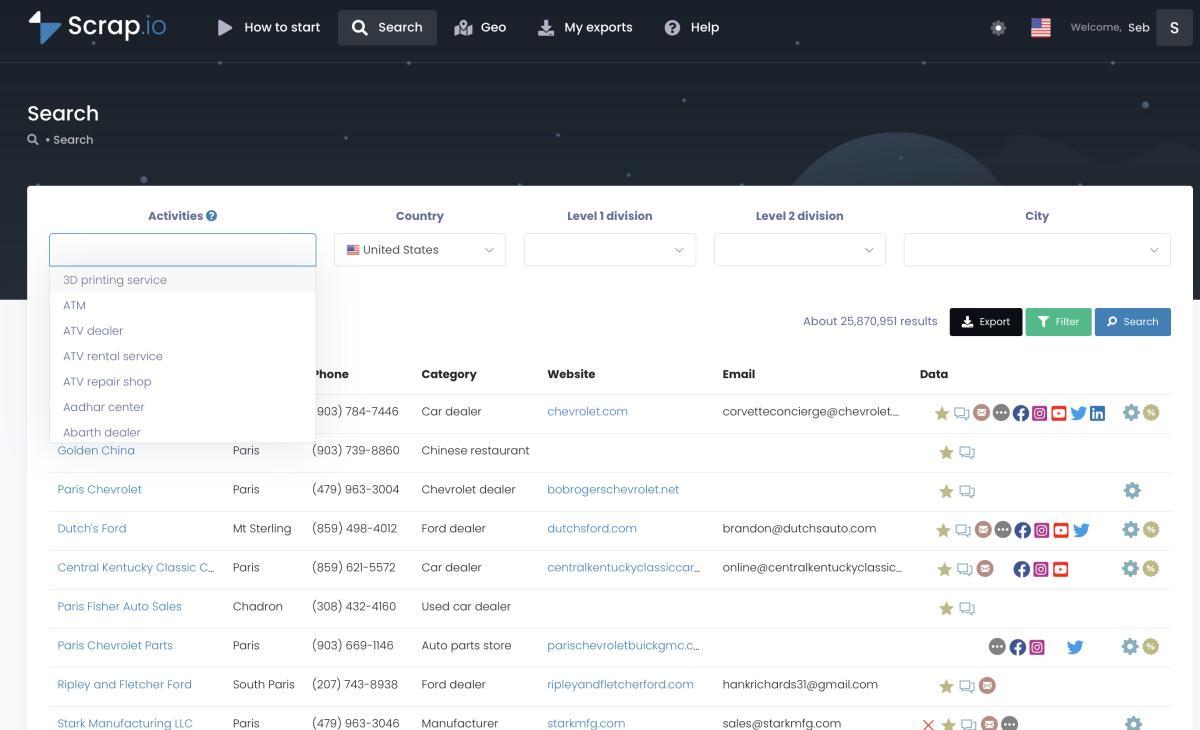
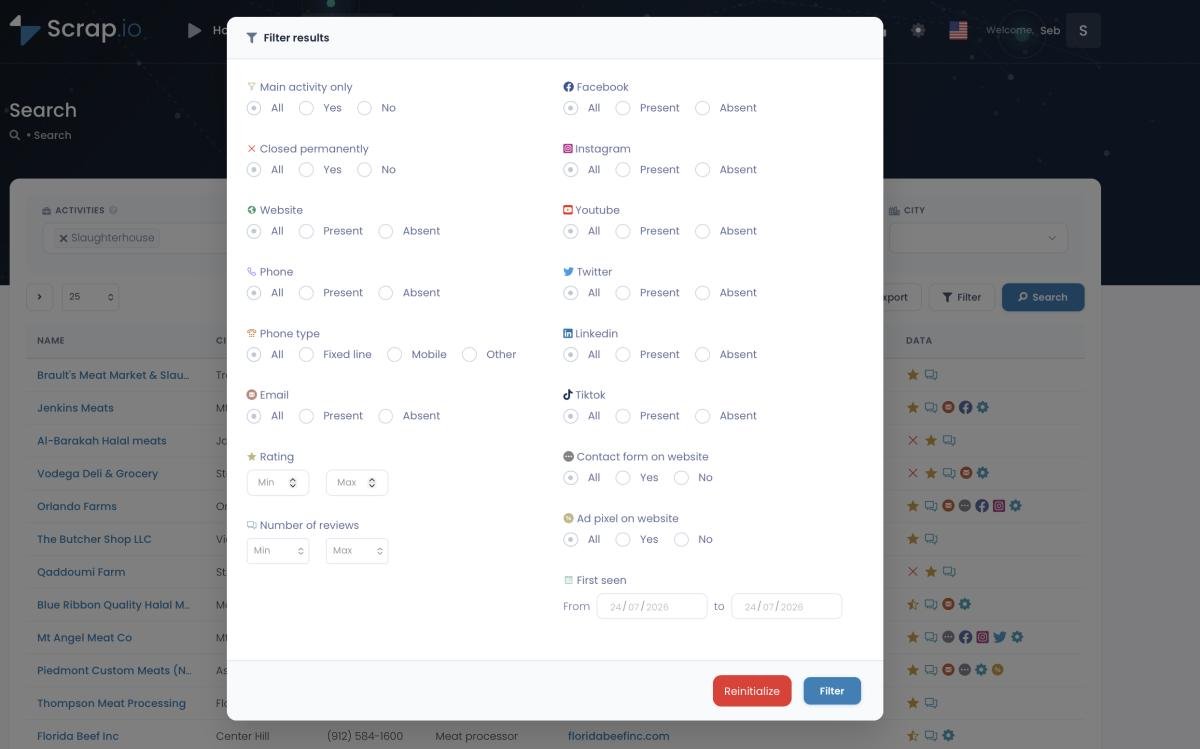
The filters are where it stops being a chore and starts being unfair (in your favor). The filtering happens before extraction — so you can tell it "only businesses that already have an email," "only the ones without a website," a minimum star rating, a minimum review count. You never spend a credit on a listing you can't actually contact. No dead rows to scrub out before the Google Contacts import. That's the whole point.
And the data is pulled at the moment you export — live off the map and the business's own site — not dredged from a frozen file someone compiled in 2023. If you want to see the exact search-to-export flow before you try it, this three-minute walkthrough covers it:
Video: Scrap.io - How to Start?
Want the free, manual version first? Here's how to find emails on Google Maps by hand — useful for 20 prospects, brutal past that.
You've got the container. Here's the contents. Scrap.io gives you 25.7M US businesses from Google Maps — filtered before export, so you only pay for records that actually have an email. No manual cleanup, CSV ready to drop into Google Contacts. Try it free for 7 days — 100 export credits, no commitment.
Keeping Your Gmail Email List Clean (Because It Decays)
A B2B contact list loses about 2.1% of its accuracy every single month. Compound that and it's roughly 22.5% a year — one contact in four, gone, in twelve months (Instantly, 2026). The main culprit? People move. Somewhere between 15 and 20% of professionals change jobs every year, which quietly invalidates their work email (Cleanlist, 2026).
Here's why you should care, in one word: reputation. Every hard bounce tells Gmail you don't know who you're emailing, and your own account's standing takes the hit. Enough of them and your good emails start landing in spam too.
So, a short hygiene list. Verify addresses before you send, not after. Pull hard bounces the instant they come back — it's worth learning the difference between a soft bounce vs hard bounce so you cut the right ones. And when in doubt, re-extract rather than reuse a stale file. A fresh pull beats a resurrected spreadsheet, every time. If you'd rather scrub the file you've got, here's how to verify your email list properly.
This video gets at the same idea from the reply side — why a stale, badly sourced list is often the real reason nobody writes back:
Video: Why Your Google Maps Emails Don't Get Replies?
22.5% of your list dies every year. That's why 50,000+ professionals re-extract instead of recycling old files — the data is pulled live at export time, not lifted from a frozen database. Start free with 100 leads and see the difference fresh data makes.
Is It Legal to Email a List You Built Yourself?
You built a list of 500 business emails from public sources. Can you legally email them?
In the US, mostly yes. CAN-SPAM runs on an opt-out model, which means you don't need prior consent to send B2B cold email — but you do need to identify yourself honestly, include a valid physical postal address, and honor any opt-out within 10 business days. The FTC's CAN-SPAM guide spells it out. Break the rules and the fines are eye-watering, so it's worth a read before your first send.
If any recipient sits in the EU, GDPR layers on top. B2B outreach usually leans on "legitimate interest," but you owe people an easy opt-out, transparency about where you got their address, and a light touch on data you don't need.
And now the critical bit, the one that ties back to Method 1: a Gmail contact label has no built-in unsubscribe mechanism. None. So when someone asks off your list, you are the unsubscribe system — you go untick the box, by hand, the same day. Forget, and you're non-compliant. It's manual, it's tedious, and it's on you. For the country-by-country detail, here's a deeper look at whether cold emailing is illegal. (None of this is legal advice, for the record — talk to someone with a law degree if the stakes are high.)
When to Graduate From Gmail to a Real Email Tool
There's a clean line. Under 50 recipients and no personalization, Gmail is fine. Past that, you're fighting the tool.
The signals are easy to spot: you want to personalize beyond "Hi {first name}," you need to know who opened and who didn't, you're brushing up against that 500-recipient wall, or you're spending more time managing opt-outs than writing. When two or more of those are true, it's time.
| Gmail label | Gmail mail merge | Dedicated cold email platform | |
|---|---|---|---|
| Volume | Up to 500/day | Up to 1,500/day | Thousands/day |
| Personalization | None | Merge tags | Deep + dynamic |
| Open/click tracking | No | No | Yes |
| Unsubscribe | Manual | Automatic | Automatic |
| Best for | Tiny lists | Light outreach | Real campaigns |
The middle column is the natural next step for most people. Once your list exists, the follow-on question is how to send to it without triggering spam filters — that's a whole guide of its own on how to send 1,500 personalized emails a day from Gmail. And when you outgrow even that, here's a roundup of the best cold email tools worth your money.
FAQ
How many people can you add to a Gmail email list?
Google doesn't publish a hard limit on how many contacts a label can hold. The real ceiling is sending: a free Gmail account can reach 500 recipients per rolling 24 hours, and Google Workspace accounts up to 2,000 messages and 10,000 recipients per day. Past that, Gmail returns a "Daily sending quota exceeded" error.
What is the difference between an email list and an email group in Gmail?
An email list (contact label) is an addressing shortcut: it drops multiple addresses into your To or Bcc field, and replies come back only to you. An email group (Google Group) is a real shared address with its own inbox, an archive, and reply-to-group behavior. Labels are faster to set up; groups are built for two-way conversation.
How do I send a group email in Gmail without showing all recipients?
Put your own address in the To field and your contact label in the Bcc field. Recipients see "Undisclosed Recipients" instead of each other's addresses. The trade-off: replies come back only to you, so group conversation is off the table.
Can I import an Excel or CSV file into a Gmail mailing list?
Yes. Save your file as CSV, go to Google Contacts → Import → Select file, then select the imported contacts and apply your label in bulk. Make sure your CSV uses Google's expected headers (Name, E-mail 1 - Value) or the mapping will break.
Is it legal to email a list you built from public sources?
In the US, CAN-SPAM allows B2B cold email without prior opt-in, but requires accurate sender identification, a valid physical postal address, and a working opt-out honored within 10 business days. If any recipient is in the EU, GDPR applies on top. Note that a Gmail contact label has no built-in unsubscribe — you'll need to handle opt-outs manually. (This isn't legal advice.)
The Takeaway
So, quick recap on how to create an email list in Gmail, for the road:
- A contact label is your fastest route to a gmail mailing list — four minutes, free, done in Google Contacts.
- Google Groups only earns its keep when you need real two-way conversation.
- A CSV import turns a spreadsheet into a list in one move — the bridge between "I made a label" and "I have a real list."
- The container was never the hard part. The contents are.
Building the list takes four minutes. Filling it with real, verified prospects takes about the same — if you know where to look.
Your Gmail list takes four minutes. Filling it with real, verified prospects takes about the same. Start your free 7-day Scrap.io trial and export your first 100 leads — 25.7M US businesses from Google Maps, filtered before you spend a credit.
Generate a list of restaurant with Scrap.io